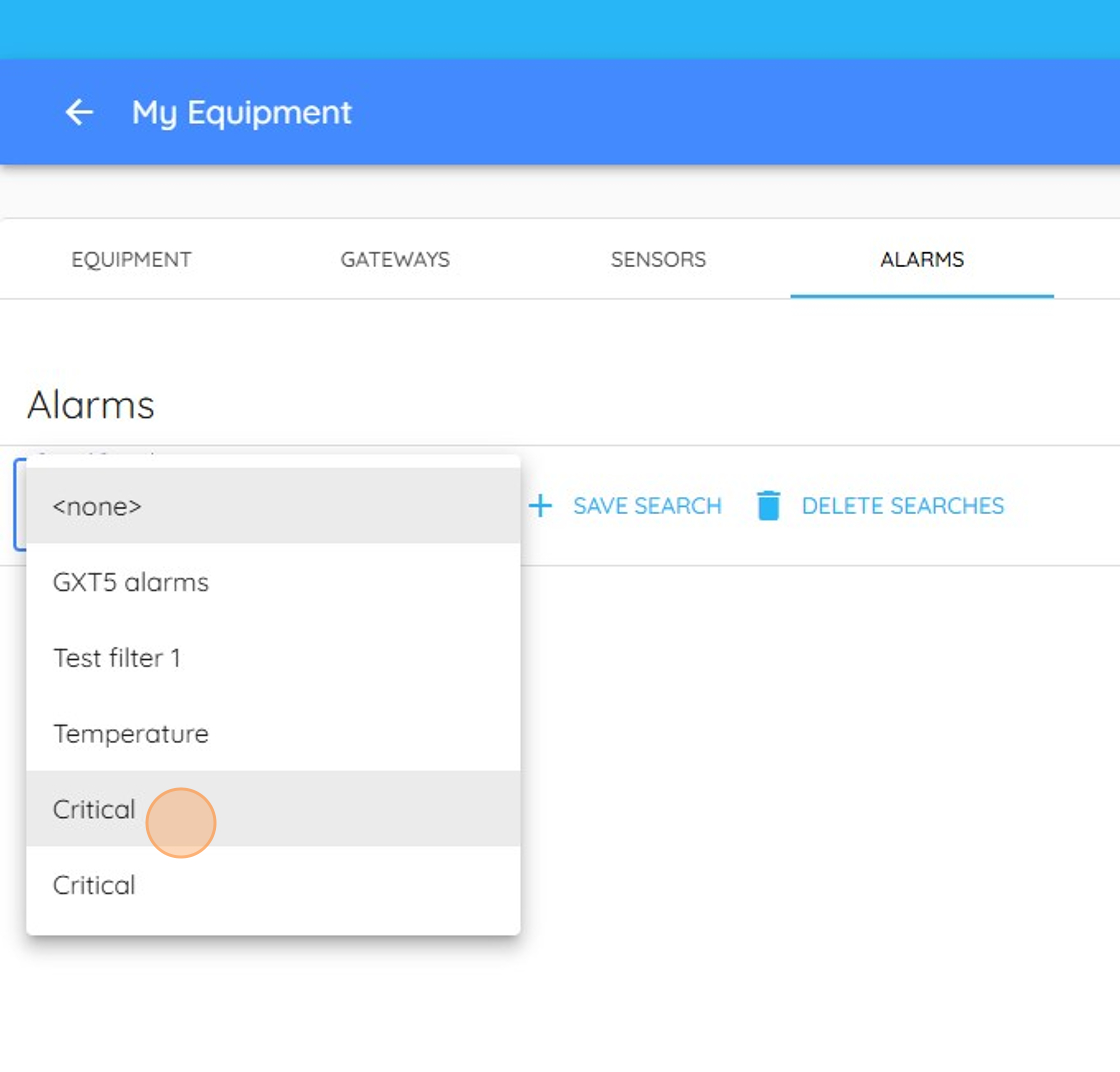
Saving Alarm Searches
Learn how to filter your alarm list to isolate critical events and save these parameters for quick access later. This guide simplifies the process of organizing your notifications so you can stay focused on the most important alerts.
Search Filter Setup
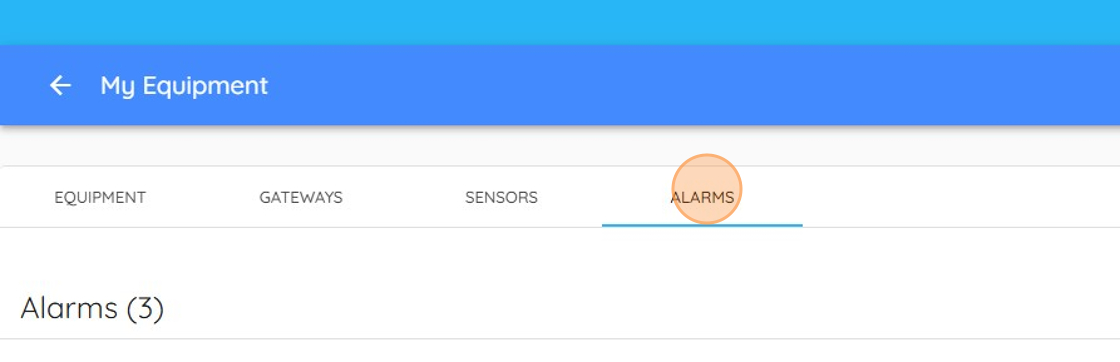
1. When your in the My Equipment page, click on the Alarms tab.
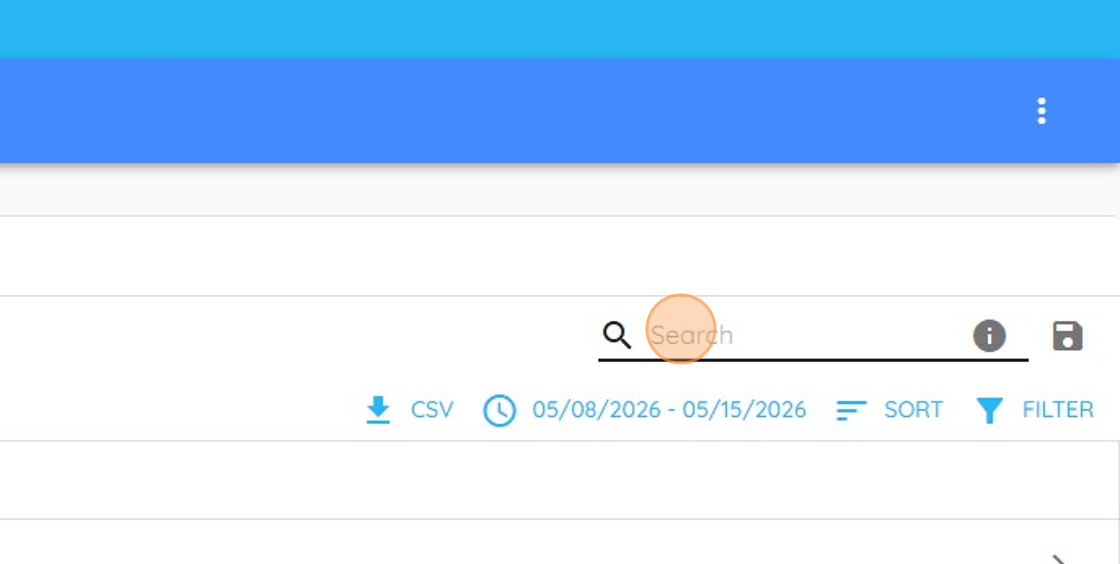
2. In the search field on the top right, you can type in what alarm you'd like to search for. I typed "Critical" into the search field.
Search Preservation
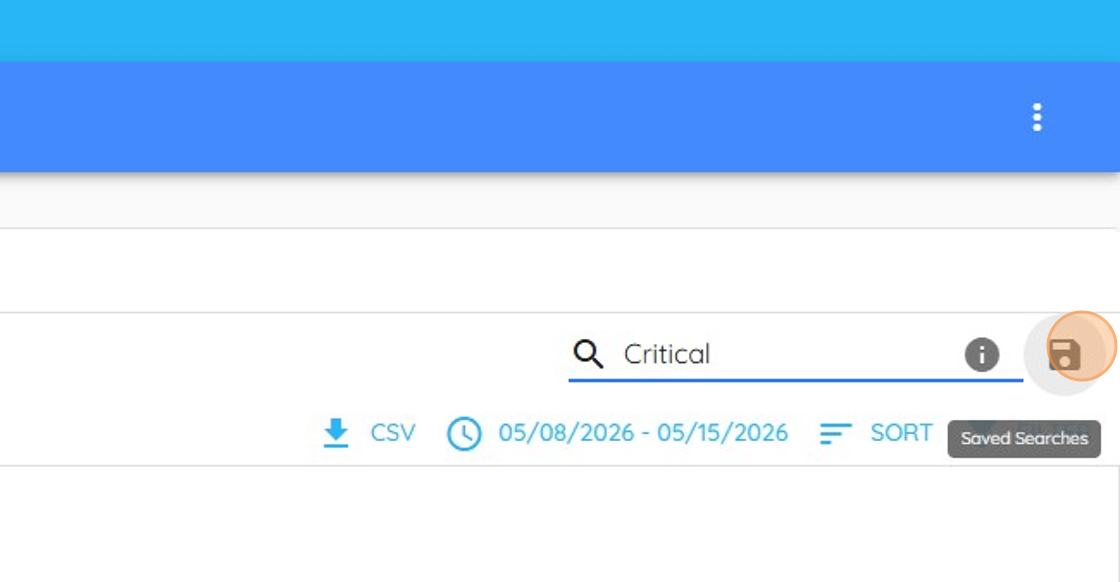
3. Click the Save icon next to the search field
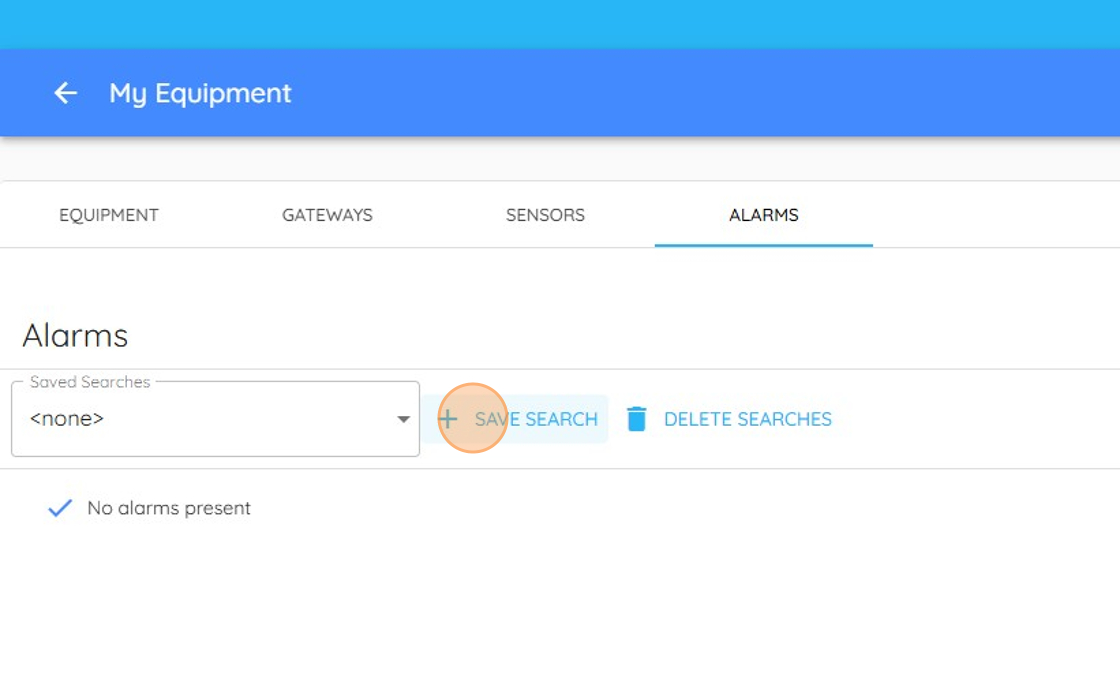
4. Click "SAVE SEARCH"
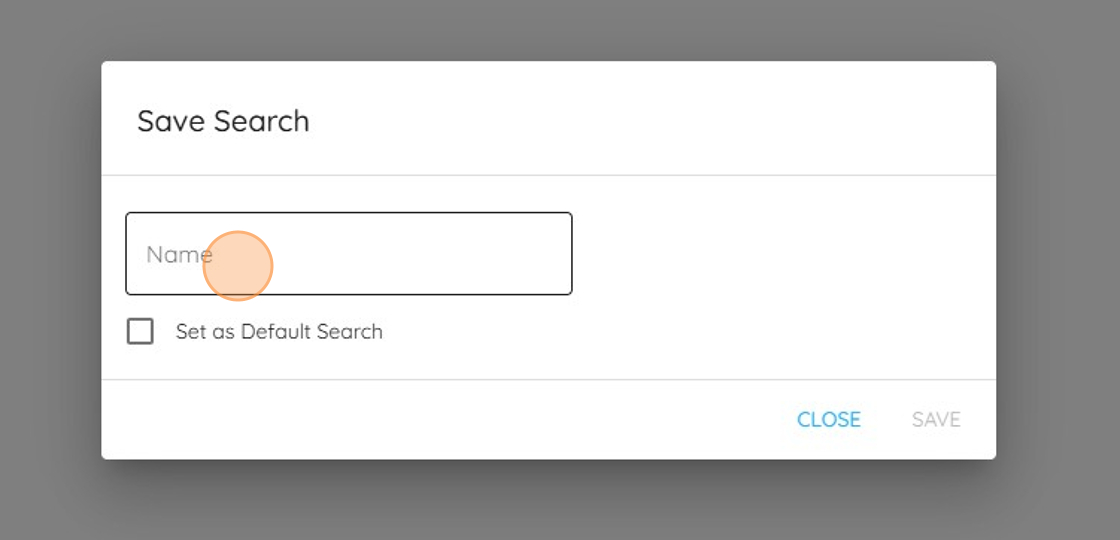
5. From here, type what you'd like the search to be saved as. We typed "Critical" into the search Name field.
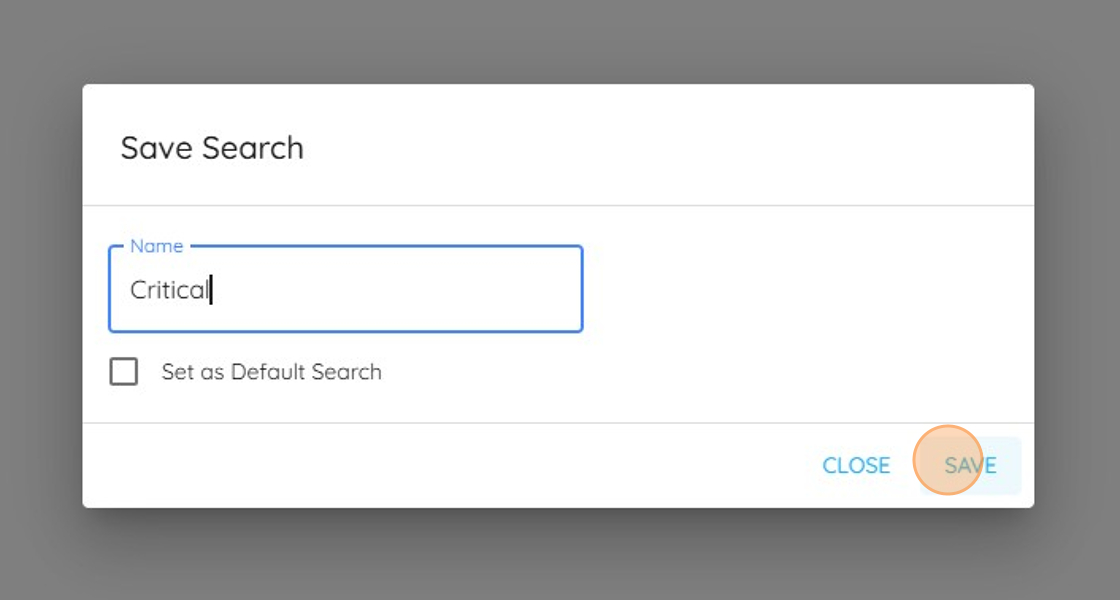
6. Click "SAVE" to confirm the search name
Saved Search Access
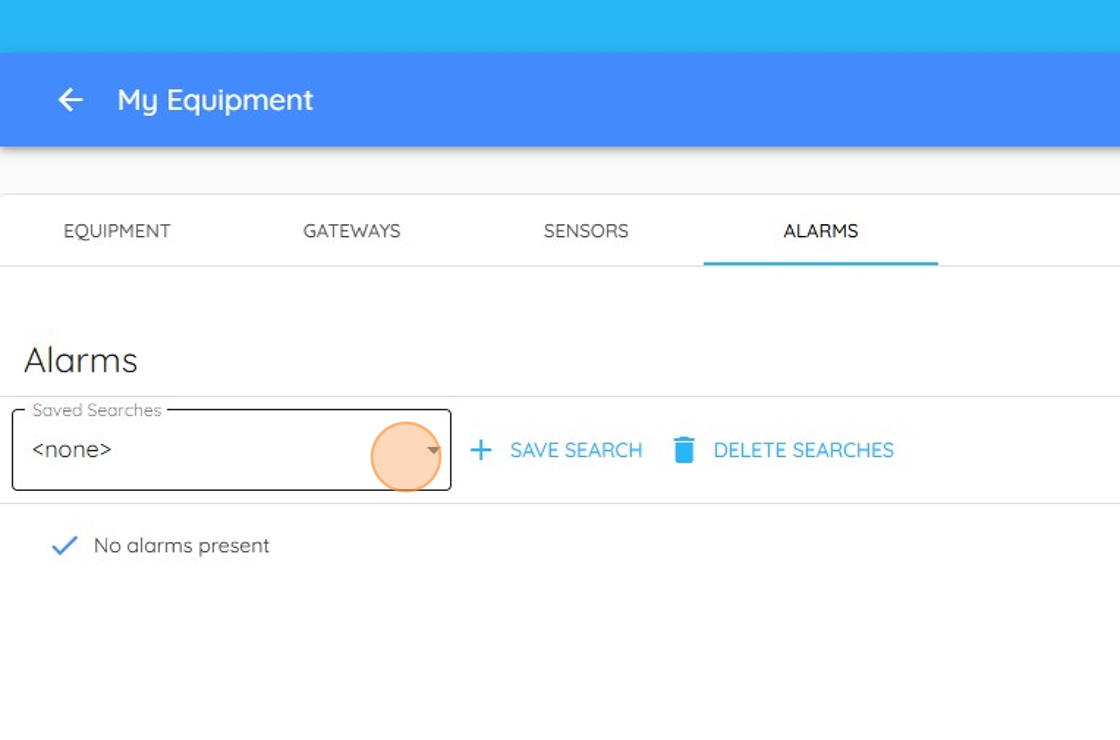
7. Now you can select your saved search.
8.